Running your wedding album
A wedding QR code, right where guests see it
Help guests find where to share their photos with a short note and QR code on tables or invitations. Before the wedding, scan the printed version and complete a photo upload yourself.
Wedding QR code placement
Use a place guests will naturally notice, as in these examples. Agree on suitable locations with your venue beforehand.
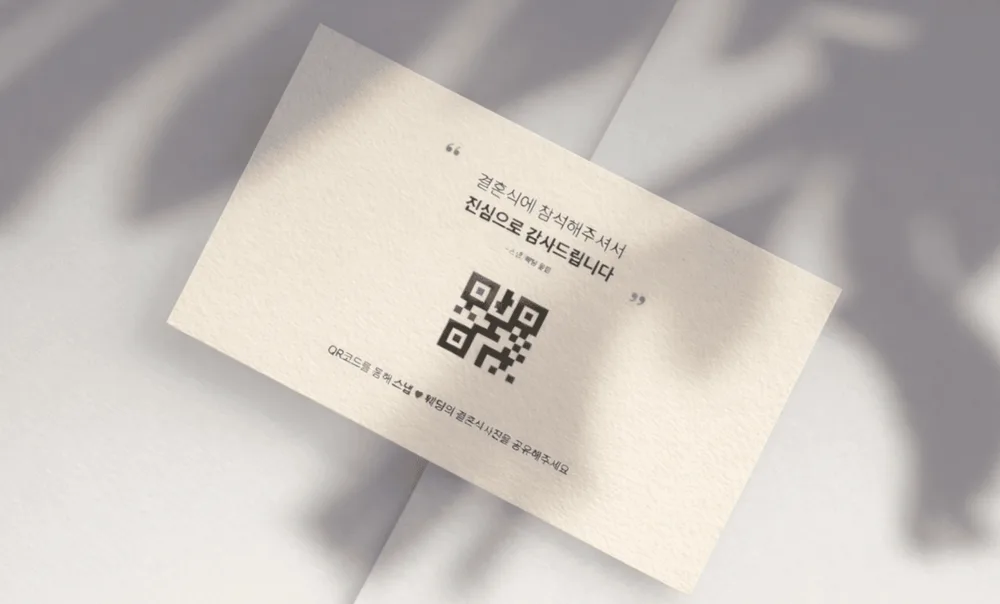
Meal-ticket QR code card
Hand it out with the meal ticket and add a short note: “Please share the photos and videos you take today.”
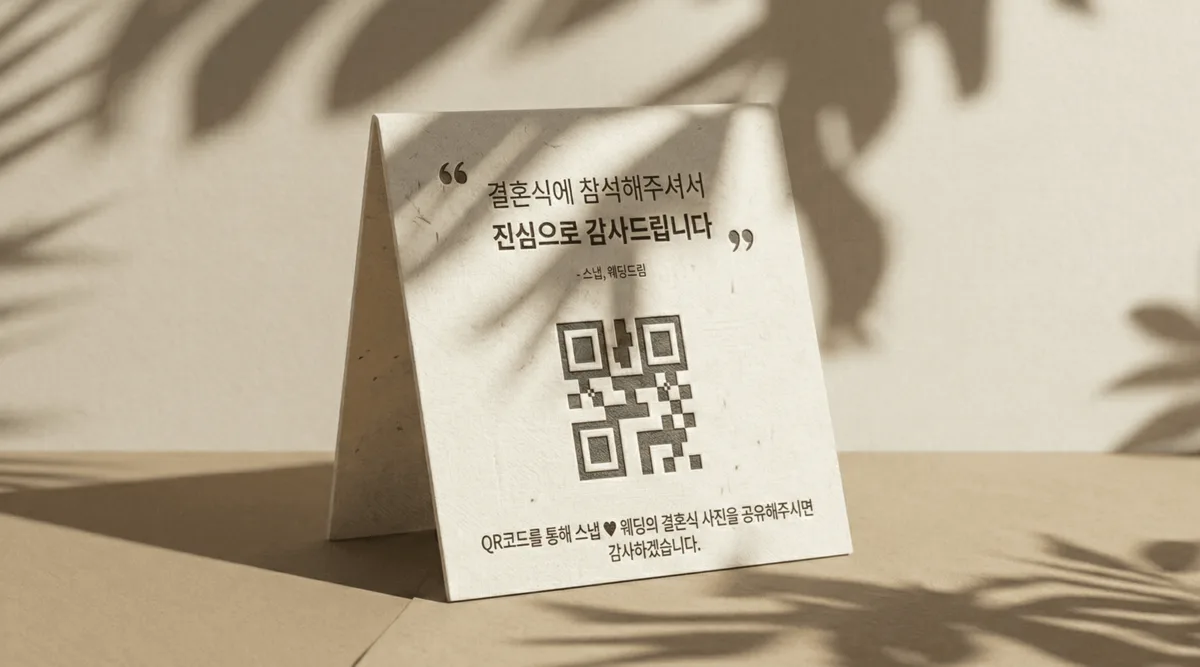
Table QR code sign
Place the QR code where seated guests can see it, clear of tableware and flower arrangements.
Before printing
- Use a dark QR code on a light background, with clear space around it.
- Keep the QR code’s original proportions when printing.
- Use your phone to scan the printed QR code and complete one photo upload.
- Check for reflective coating, glare or decorations covering the code.
- Keep the upload link ready to send to guests who find scanning difficult.
When to share the QR code
Before the wedding
Add the upload link to your digital invitation and share the announcement with your emcee and venue team. Open the album for uploads and test it from another phone.
On the day
Check that table signs and other printed materials are easy to see. Have your emcee briefly explain where to upload. Guests can choose photos and share when convenient.
After the wedding
Include the same link with a thank-you message. Review the files you receive and download them before the storage deadline.
Guests upload photos without installing an app
Guests can upload photos and videos from their mobile browser without installing an app or creating an account.
- 01
Open the album from the QR code or link
Guests scan the QR code with their phone camera or tap the shared link to open the wedding album.
- 02
Enter a name
Guests enter the name shown with their photos and continue without creating an account.
If the event collects contact details, guests need to enter them and consent to their use to join the event.
- 03
Choose photos and videos to upload
Guests select photos and videos from their phone, then tap upload to send them to the album.